Building a Recursive SharePoint File Callable in Workato

While working on a SharePoint integration in Workato, I came across a problem that at first seemed simple but turned out to require a different way of thinking about the workflow.
Approach
The goal of the automation was straightforward. I needed to pull documents from a SharePoint folder and process them in another system. The first approach that naturally came to mind was to use the “List SharePoint Files and Folders” action available in the SharePoint connector. The idea was simple: list everything inside the folder, loop through the results, download the files, and process them in the destination system.
During initial testing, this worked perfectly. I created a simple folder structure with a few test files and ran the recipe. The action returned the folder contents, the loop executed correctly, and the files were downloaded as expected. At that point, it seemed like the automation was ready.
When the Real SharePoint Structure Changed Everything
However, things started to behave differently when the recipe was tested against the actual SharePoint environment used by the client. The repository there had several layers of folders, and most of the documents were stored inside nested subfolders. When the recipe ran on this real structure, it only returned the top-level folders and none of the files inside those folders.
Debugging
At first I assumed something was wrong with the configuration. I checked the folder IDs, verified the mappings, and reviewed the loop logic to make sure the recipe was iterating through the correct data. I ran the automation multiple times, but the result was always the same. The recipe would list the folders at the first level, but it would not automatically retrieve the files stored deeper inside the structure.
Exploring Other SharePoint Connector Options
Before fully understanding the issue, I tried a few other options available in the SharePoint connector to see if they could help. One approach I tested was using the Get file action by providing a specific file path. This worked when the exact path of a file was known in advance. However, in this scenario the folder structure was dynamic and contained many different folders, so it was not realistic to manually provide paths for every file.
I also experimented with the Search files functionality to see if it could retrieve all files under a parent directory. While this did return some results, it still did not consistently return every file located in deeper folders. It became clear that these actions were meant for finding specific files rather than scanning an entire directory structure.
Solution
After spending some time testing different approaches, I finally realized that the issue was not related to Workato at all. It was simply how SharePoint behaves. When SharePoint returns the contents of a folder, it only returns the items that exist directly inside that folder. If those items include other folders, SharePoint does not automatically return the contents of those subfolders. Each folder must be queried individually in order to see what is inside it.
Once I understood this behavior, the problem made much more sense. The automation could not assume that a single listing action would return all the files in the structure. Instead, the workflow needed to explore each folder it discovered and then explore any folders inside those folders as well.
To handle this, I changed the logic of the automation slightly. Whenever the recipe lists the contents of a folder, it loops through each item that is returned. If the item is a file, the recipe processes it as expected by downloading it and sending it to the next system in the pipeline. If the item is a folder, the recipe does not process it immediately. Instead, it keeps track of that folder so it can be explored later.
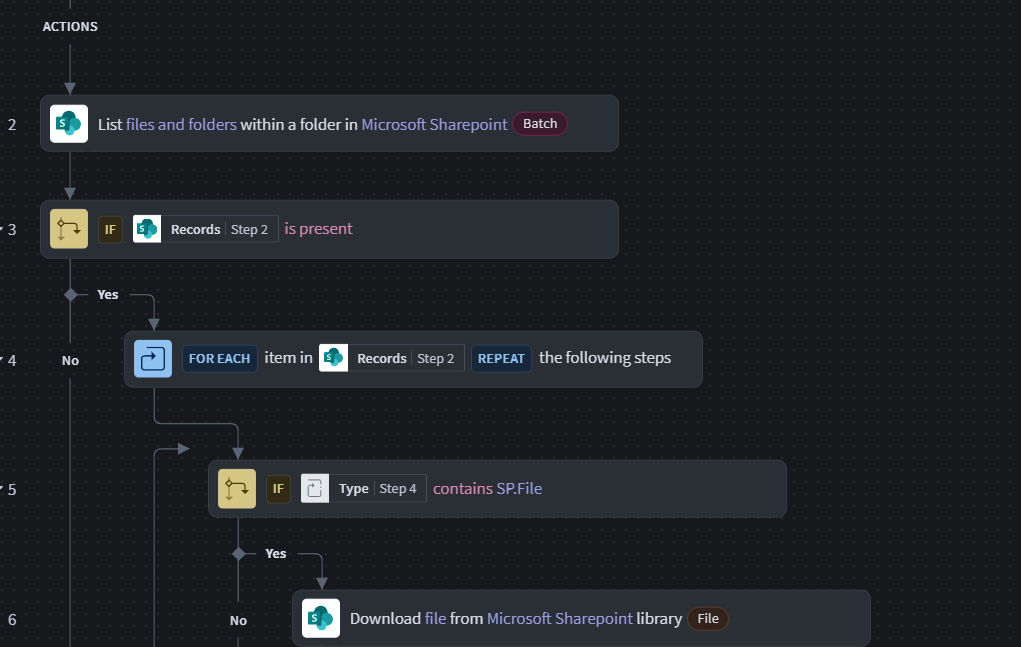
In simple terms, every time a new folder is discovered, it gets added to a list of folders that still need to be checked. The automation then continues by picking the next folder from that list, listing its contents, and repeating the same process again. If that folder contains more folders, those are added to the list as well. This continues until there are no more folders left to explore.
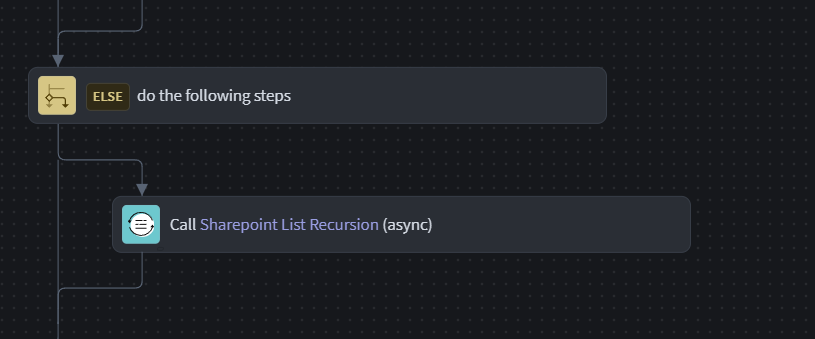
By doing this, the automation gradually moves through the SharePoint structure step by step. Even if a folder contains multiple layers of nested folders, the process eventually reaches them and processes the files inside. Instead of relying on a single listing operation, the workflow slowly walks through the entire directory tree.
Conclusion
This approach turned out to work much better for real-world SharePoint repositories. Since the automation explores one folder at a time, it avoids making large bursts of API calls and keeps the process manageable. It also makes the workflow easier to monitor because it is always clear which folders have already been processed and which ones still need to be explored.
Looking back, this was a good reminder that integrations often depend heavily on how the underlying systems behave. Something that appears simple at first — like listing files in a folder — can become more complex when dealing with real enterprise data structures.
By adjusting the workflow to keep exploring folders as they are discovered, the automation was able to handle even deeply nested SharePoint repositories without missing any files. The solution ended up being much more reliable and flexible than the original approach.
If you are building integrations with SharePoint in Workato, this is something worth keeping in mind. Real repositories rarely have flat folder structures, and designing the workflow so that it can explore folders step by step can save a lot of troubleshooting later. Once the automation is able to move through the directory structure gradually, it becomes much easier to ensure that every document is discovered and processed correctly.
Comments
Join the discussionNo comments yet. Be the first to comment.