How Workato Actually Counts Tasks
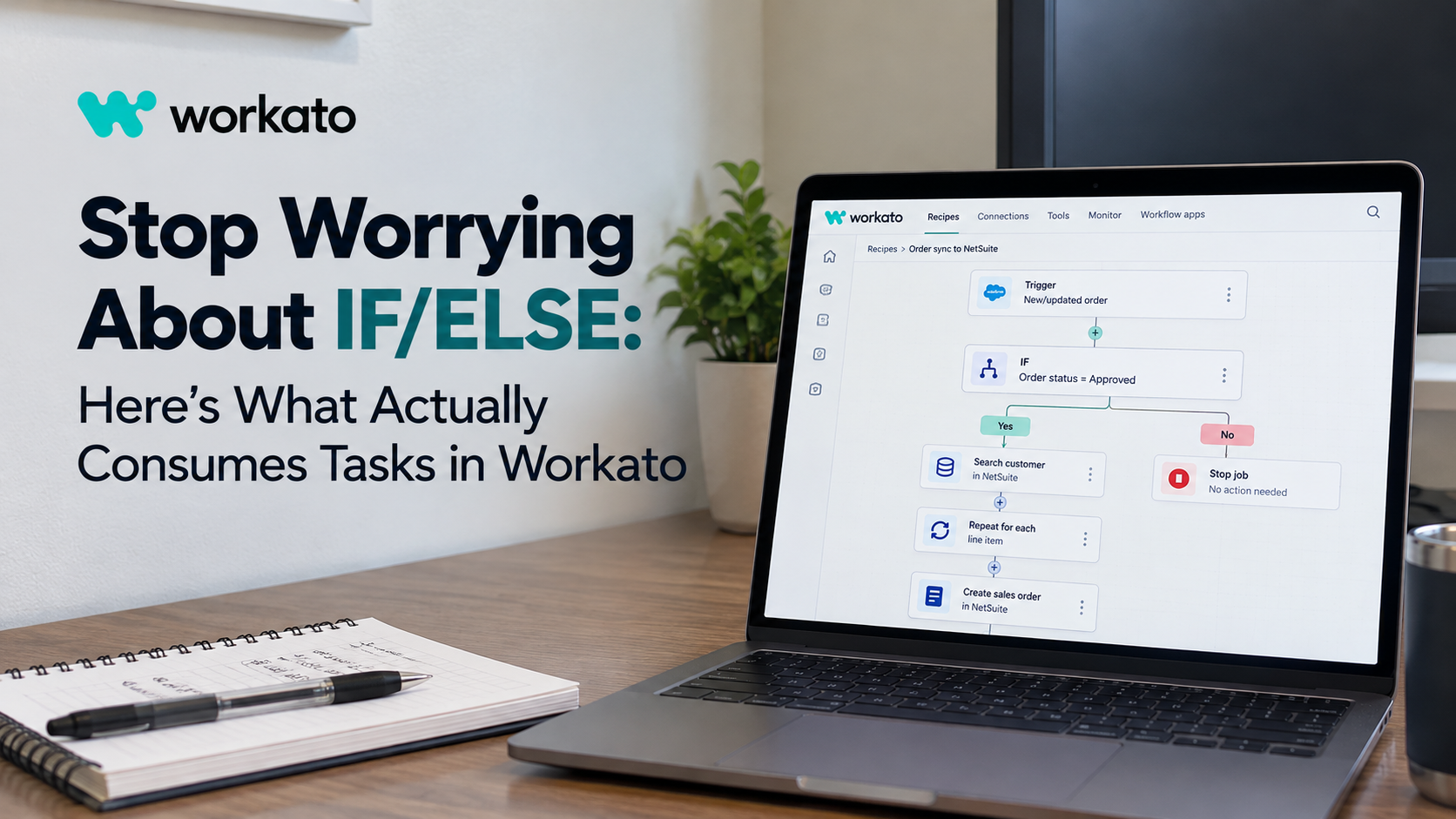
Why IF/ELSE blocks aren't the problem, where your tasks really go, and a few things I've learned while building integrations.
One thing I've noticed while working with different Workato users and teams is that a lot of people are surprisingly hesitant to use IF/ELSE conditions.
When I ask why, I usually hear the same answer:
"Doesn't adding conditions increase task consumption?"
And that got me thinking.
I've seen recipes where people avoid conditions, squeeze multiple operations into one long sequence, or skip proper error handling, all because they're trying to save tasks.
But here's the interesting part: IF/ELSE conditions don't consume tasks at all.
Neither do Repeat blocks, Stop job, or error-monitoring blocks themselves.
In fact, using conditions correctly can actually reduce task consumption because actions in branches that don't execute aren't counted.
So I spent some time going through Workato's documentation to understand exactly what counts as a task, what doesn't, and where task usage can quietly increase.
I also wanted to connect that documentation with what I've seen while building and maintaining integrations for clients.
Let's break it down.
Quick note: This article focuses on Workato's task-based usage model. Some Workato plans use Business Actions or other consumption models, so always refer to your organization's contract for the applicable billing rules.
1. First, what exactly is a task in Workato?
The simplest way to think about it is:
A task is an action step that successfully executes in a recipe.
It doesn't matter whether you're creating a NetSuite customer, searching Salesforce, updating a lookup table, or simply logging a message.
If an action runs successfully, it generally counts as a task.
For example:
| Action | Task count |
|---|---|
| Search for a customer in Salesforce | 1 |
| Create a vendor in NetSuite | 1 |
| Update a record in Jira | 1 |
| Look up an entry in a Workato lookup table | 1 |
| Log a message using Logger | 1 |
Now here's something worth paying attention to.
It's easy to assume that Workato's built-in utilities are somehow free because they're part of the platform.
They're not.
Some of the most overlooked task consumers are:
Variables by Workato: Creating or updating variables, creating lists, and adding items to lists.
Lookup tables: Searching, retrieving, adding, or updating entries.
Data parsers: JSON, CSV, XML, and similar parsing actions.
Logger: Every executed Log message action.
HTTP: Requests made through the HTTP connector.
Other utility connectors: Workato Tables, Collections, Email by Workato, and Workbot actions.
Even a synchronous call to a recipe function consumes a task for the call itself, in addition to the actions executed inside the function.
And AI by Workato deserves separate attention because some AI actions may carry higher consumption weights, depending on the applicable usage model.
One important distinction: A search that returns 500 records can still be just one task. The additional consumption usually comes from what you do with those 500 records afterward.
Which brings me to the next point.
2. The IF/ELSE myth: control flow is free
This is probably the biggest misconception I come across.
People sometimes treat every visible step in a recipe as a task.
But Workato doesn't count every block you see on the canvas.
It counts qualifying actions that actually execute.
These control-flow steps don't consume tasks by themselves:
| Step | Task consumption |
|---|---|
| Trigger | 0 |
| Trigger condition | 0 |
| IF / ELSE IF / ELSE | 0 |
| Repeat for each / Repeat while block | 0 |
| Stop job | 0 |
| Monitor / Handle errors block | 0 |
| Skipped action | 0 |
Here's a simple example.
Suppose an incoming order has a status of Cancelled.
Your recipe has an IF condition:
IF order status = Approved
Inside that branch, you search for a customer, create an invoice, and update the source system.
If the condition is false, none of those three actions execute.
Total tasks consumed by that branch: 0.
The IF condition didn't cost you anything. More importantly, it prevented three unnecessary actions from running.
That's why I usually prefer putting conditions as early as possible in a recipe, especially when the trigger already contains enough information to decide whether processing should continue.
You don't need to eliminate conditions to optimize a recipe.
You need to use them intelligently.
3. Where task consumption actually gets expensive
In my experience, the biggest surprises usually come from four areas: loops, unnecessary utility actions, recipe functions, and retries.
Loops: the multiplier nobody notices
Let's say you're processing five employees.
Your recipe searches for employee records and then performs two actions for each employee.
The calculation is simple:
1 search + (2 actions × 5 employees) = 11 tasks.
Now imagine the same recipe processes 500 employees.
1 + (2 × 500) = 1,001 tasks.
Nothing about your recipe changed.
The number of records did.
This is especially relevant for integrations involving payroll data, orders, invoices, employee synchronization, or any process handling large datasets.
I've worked on integrations where one payroll run can contain hundreds or thousands of records. In those situations, even one unnecessary action inside a loop can make a noticeable difference.
If you have 800 records and remove just one action from the loop, you've potentially saved 800 tasks per job.
That's a much bigger optimization than removing ten IF conditions, which wouldn't have saved anything.
Bulk actions: one action instead of hundreds
Whenever a connector supports bulk or batch operations, it's worth exploring them.
Consider a scenario where you need to create 500 records.
Approach A: Individual records
Repeat through 500 records and execute Create record each time.
That's 500 tasks for those create actions.
Approach B: Bulk operation
Prepare the records and execute one supported bulk Create action.
That can be just 1 task for the bulk action itself.
Of course, you'll still need to consider the tasks required to prepare the payload, connector limits, batch-size restrictions, and error handling.
But the difference can be significant.
This is one of the first things I check when designing integrations expected to handle large volumes.
Recipe functions: reusable doesn't mean free
I'm a big fan of recipe functions.
They help keep integrations modular, reusable, and easier to maintain.
But there's a task-consumption detail worth understanding.
When a parent recipe synchronously calls a recipe function, the call consumes a task, and the actions inside the function also count.
For example:
Parent recipe: 16 tasks, including the function call.
Recipe function: 3 tasks.
Total across both executions: 19 tasks.
The job history for the parent and the function may show their respective counts separately, so don't assume the parent job's displayed count represents everything that happened.
I wouldn't avoid recipe functions just to save a task.
Maintainability and reusability matter.
But if you're calling a function hundreds of times inside a loop, it's worth reviewing whether the function could accept a collection of records instead.
Error handling: free blocks, potentially expensive retries
Here's another area where people sometimes get confused.
The Monitor / Handle errors structure itself doesn't consume tasks.
But the actions executed inside it do.
And when a retry occurs, successfully executed actions that run again are counted again.
Imagine this:
A monitored block contains three actions:
Search record.
Update record.
Send notification.
The Search succeeds, but Update fails.
The recipe retries the block.
The Search succeeds again, the Update succeeds, and the notification executes.
The successful action executions are:
Search on first attempt: 1 task.
Search on retry: 1 task.
Update on retry: 1 task.
Notification: 1 task.
Total: 4 tasks.
The failed Update attempt itself isn't counted.
The important lesson is that the size of your retry block matters.
If you place ten unrelated actions inside a monitor and retry the entire block because one API call fails, you could end up repeating actions that had already succeeded.
I generally prefer keeping retry scopes focused on the operations that genuinely need retrying.
It makes troubleshooting easier and helps avoid unnecessary task consumption.
4. The hidden consumers: testing and rerunning jobs
This is one of those things that doesn't get enough attention during development.
We spend a lot of time optimizing production recipes, but development and testing also contribute to task consumption.
Manual testing
When you click Test recipe, Workato executes a real job.
The actions that run consume tasks just as they would in production.
Now imagine you're developing a recipe that processes 200 records, and you run it 15 times while debugging.
Even if the recipe isn't live yet, those executions can add up.
That's why I prefer using smaller sample payloads during initial development.
Start with one or two records, validate the logic, and then gradually test with larger datasets.
Test Automation
This one can be surprising.
According to Workato's task-usage documentation, mocked actions in Test Automation test cases can still contribute to task consumption.
Suppose you have a test suite with 20 test cases, and each executes 10 counted actions.
That's approximately 200 tasks per full suite run.
Run that suite repeatedly during development or through CI/CD, and the usage grows quickly.
Testing is absolutely worth it. I wouldn't recommend reducing meaningful test coverage just to save tasks.
But it's useful to understand the consumption, especially when you're planning usage across environments.
Rerunning failed jobs
Rerunning a job doesn't erase the task consumption from the original attempt.
The rerun is another execution.
If you rerun 100 failed jobs, the actions executed during those reruns contribute additional tasks.
And if the original jobs had already completed several successful actions before failing, those actions were counted too.
This is another reason why designing recipes with good error handling and recoverability matters.
5. Let's look at a realistic NetSuite integration
Here's a scenario many integration developers will recognize.
An order comes into Workato. We need to:
Find the customer in NetSuite, creating one if necessary.
Determine the correct subsidiary.
Process the order's line items.
Create a NetSuite sales order.
Log the outcome.
Assume each order contains four line items and the customer already exists.
The original approach
| Step | Tasks per job |
|---|---|
| Trigger: New order | 0 |
| Search customer | 1 |
| IF customer not found | 0 |
| Create customer (existing customer) | 0 |
| Lookup subsidiary | 1 |
| Create list variable | 1 |
| Repeat through line items | 0 |
| Search item for each line | 4 |
| Add each item to list | 4 |
| Create sales order | 1 |
| Log message | 1 |
| Total | 13 |
For a new customer, the additional Create customer action brings the total to 14.
Now let's assume:
3,000 orders per month.
30% are new customers.
Each order averages four line items.
Monthly task consumption:
3,000 × 13 + 900 = 39,900 tasks.
And that's before additional testing, retries, and reruns.
Now let's optimize the same integration
Instead of searching for each item individually, suppose the connector supports retrieving all required items in one search.
Instead of creating a list variable and adding each item through separate actions, we use formulas and supported datapill transformations to construct the payload.
And once the recipe is stable, we remove the routine Logger action from the production path.
The optimized flow could look like this:
| Step | Tasks per job |
|---|---|
| Trigger | 0 |
| Search customer | 1 |
| IF customer not found | 0 |
| Create customer (existing customer) | 0 |
| Lookup subsidiary | 1 |
| Search items in one call | 1 |
| Create sales order | 1 |
| Total | 4 |
For new customers, it's 5 tasks.
With the same 3,000 monthly orders and 30% new customers:
3,000 × 4 + 900 = 12,900 tasks.
That's a reduction from 39,900 to 12,900 tasks.
Roughly 68% fewer tasks, without changing the business outcome.
Now, this is an illustrative scenario. The optimized approach depends on connector capabilities, available search filters, payload structures, and the ability to perform the mapping without additional actions.
But the broader lesson is what matters.
The biggest savings came from eliminating repeated actions inside a loop, not from removing conditions.
6. A few practices I follow when building Workato recipes
Over time, I've started paying attention to a few things during design reviews and client implementations.
1. Put conditions before expensive actions.
If a trigger datapill already tells you whether a record should be processed, use it before making API calls or lookup-table searches.
Better yet, use trigger conditions when possible so irrelevant events don't start unnecessary processing.
2. Don't put a search inside a loop unless you need to.
This is probably one of the first things I look for when reviewing a high-consumption recipe.
If you can retrieve all the necessary records in one call, do that and process the results locally where practical.
3. Use formulas for straightforward transformations.
Not every transformation needs a Create variable, Update variable, or list action.
For simple mappings, string manipulation, and conditional values, formulas can often accomplish the same thing without an additional action.
4. Use bulk actions where they make sense.
Batch processing can be a major optimization, especially for integrations dealing with high record volumes.
But also consider API limits, partial failures, and how you will recover from unsuccessful batches.
5. Keep error handling focused.
Don't wrap half the recipe in a retry block if only one action is likely to fail.
A smaller retry scope is generally easier to troubleshoot and can avoid repeating successful actions.
6. Be intentional about logging.
Logger is useful during development and debugging.
But if you're logging every record inside a loop, that can become expensive.
Keep logs that provide operational value, and remove repetitive debug logs when they are no longer needed.
7. Test small before testing big.
During initial development, I prefer validating the flow with a small number of records before running full-volume tests.
You still need performance and volume testing, but not every mapping change needs a 500-record test.
8. Monitor consumption after go-live.
A recipe that consumes 20 tasks per job today might consume 200 next month if the number of records returned by an upstream system increases.
Keep an eye on both total task usage and tasks per job.
A sudden increase can be an early indication that something in the data volume or execution path has changed.
9. Consider RecipeOps guardrails.
For high-volume or business-critical integrations, RecipeOps can help automate operational monitoring and recipe management.
A controlled process for detecting excessive usage and stopping problematic recipes can prevent a runaway integration from continuing unchecked.
7. Quick reference: What counts and what doesn't?
Here's a table worth keeping handy.
| Step type | Task consumption |
|---|---|
| Trigger / Trigger conditions | 0 |
| IF / ELSE IF / ELSE | 0 |
| Repeat block | 0 |
| Stop job | 0 |
| Monitor / Handle errors block | 0 |
| Skipped actions | 0 |
| Standard connector action | 1 per successful execution |
| Variables / Lookup tables / Logger | 1 per successful action |
| Actions inside loops | Counted for each successful execution |
| Bulk or batch action | Typically 1 per action execution |
| Failed action | Not counted |
| Successful action repeated during retry | Counted again |
| Synchronous recipe function call | Call plus function actions |
| Manual test job | Counted |
| Test Automation with mocked actions | Counted under documented rules |
| Job rerun | Counted again |
| AI by Workato | Check applicable consumption model |
| IDP / Event streams | Separate usage metrics |
| API platform recipes | API-call-based consumption rules |
Remember that this table applies to the task-based model. Product-specific exceptions and contract terms can change how consumption is measured.
8. One final thought
I think there's a tendency, especially when we're new to an automation platform, to associate a shorter recipe with a more efficient recipe.
But fewer steps on the canvas doesn't necessarily mean fewer tasks.
A recipe with 30 steps, proper conditions, clear error handling, and batch processing can be much more efficient than a 10-step recipe that makes unnecessary API calls inside a loop.
And sometimes, optimizing purely for task consumption isn't even the right decision.
If an additional task makes an integration easier to maintain, improves visibility, or prevents a critical business failure, it may be worth it.
The goal shouldn't be to build recipes that consume the absolute minimum number of tasks at any cost.
The goal should be to build integrations that are reliable, maintainable, scalable, and efficient.
So the next time you're reviewing a Workato recipe, don't start by counting the IF/ELSE blocks.
Look at what's executing, how often it's executing, and whether it really needs to execute that many times.
That's usually where the real opportunities are.
And if you're someone who has been avoiding IF/ELSE because you thought conditions consume tasks, I hope this clears that up!
I'd also be curious to hear from other Workato developers: what's one task-consumption surprise you've discovered while building integrations?
References
For anyone who wants to dig deeper, these are the Workato documentation topics I used as the basis for this breakdown:
Note: The calculations and scenarios above illustrate the task-based consumption model. Validate current product-specific behavior and your organization's contract before using these estimates for billing or capacity planning.
Comments
Join the discussionNo comments yet. Be the first to comment.